
How I Ran Apple's On-Device Foundation Model from the Terminal on an M2 Mac
A getting-started guide to running Apple's on-device Foundation Model with the fm CLI on macOS 27, including the modelNotReady fix and local server mode.
TL;DR
- macOS 27 ships with the
fmCLI pre-installed, so you can run Apple's on-device Foundation Model from the terminal with nothing extra to install. - Always start with
fm available: having the CLI doesn't mean the model is ready. - If you see
modelNotReady, check the license (sudo fm license), make sure Apple Intelligence and Siri are on, and set the device and Siri languages to the same supported language. fm respond,fm chatandfm count-tokenscover quick prompts, interactive sessions and token checks.fm serve --port 8080exposes the model as a local endpoint for your own scripts and apps.
Introduction
I've wanted to try the on-device foundation model on Apple devices ever since Apple announced it at WWDC, and this week I finally explored it. Below are my notes from that experiment: what I needed to set up, the one problem that blocked me, and how far you can get from a plain terminal.
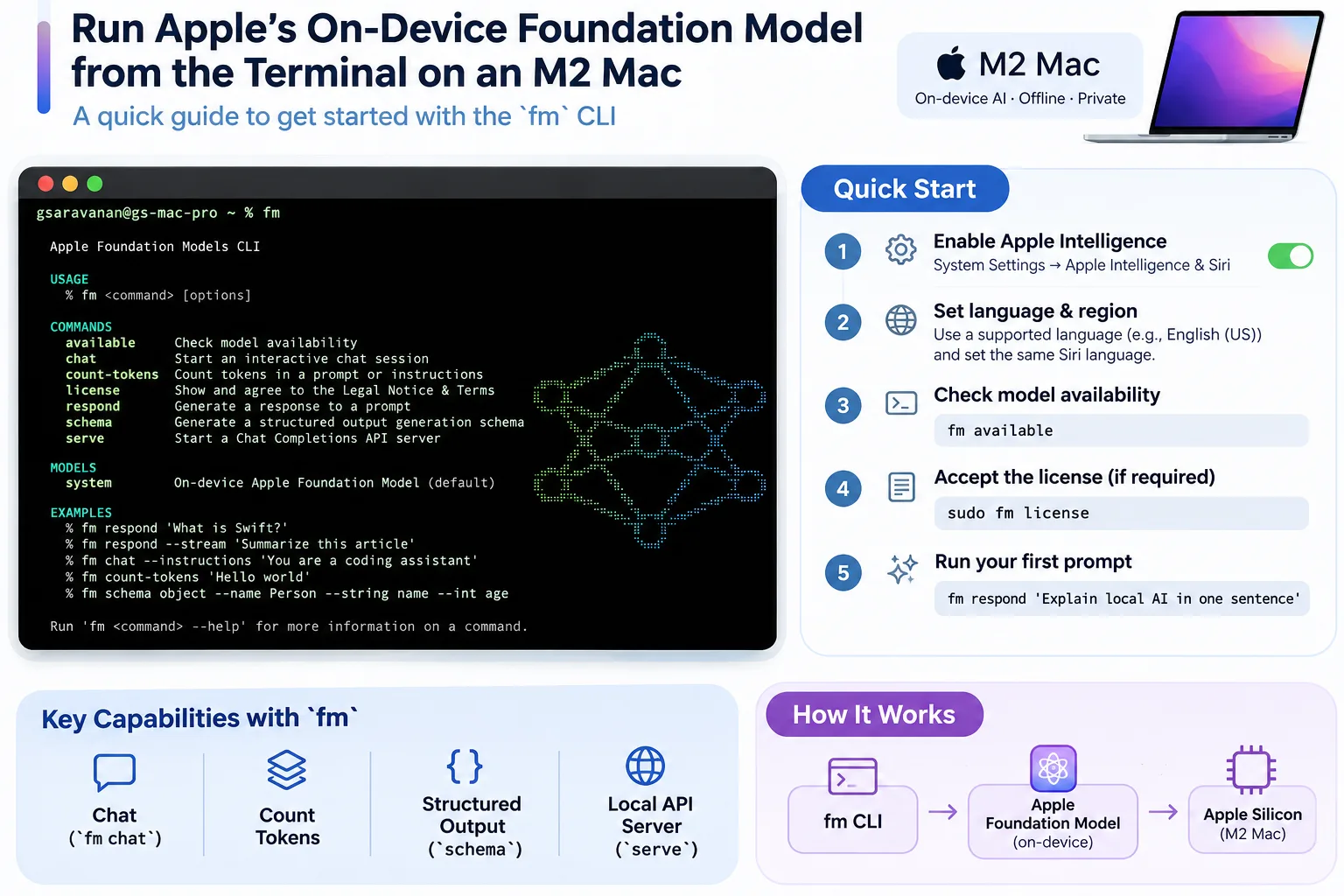
Apple now provides the fm command-line tool on macOS 27 for accessing Apple Foundation Models directly from the terminal.
I tested it on my M2 Mac with 8 GB unified memory to understand the simplest path for running Apple's on-device model locally.
This is a quick getting-started guide based on that experiment.
Prerequisites
Apple's current requirements include:
- macOS 27
- an Apple Intelligence-capable Mac — Mac with M1 or later is supported
- Apple Intelligence enabled
- device language and Siri language set to the same supported language
- sufficient local storage for Apple Intelligence model assets
The fm CLI comes pre-installed with macOS 27, so there is no separate package to install.
1. Check whether the model is available
This should be the first command:
fm available
If everything is ready, you should see:
System model available
In my case, the first result was:
System model unavailable: modelNotReady
This is an important distinction:
fm CLI available
        ≠
on-device model ready
The CLI can already exist while the underlying Apple Foundation Model is still unavailable.
2. Check and accept the Foundation Models CLI license
If the model is not available, check the CLI terms:
sudo fm license
Follow the prompt to accept the terms if required.
In my case, the license had already been accepted, so modelNotReady was caused by something else.
After this, check again:
fm available
3. Make sure Apple Intelligence and Siri are configured correctly
Apple requires the device language and Siri language to use the same supported language for Apple Intelligence. Changing the Siri language can temporarily make Apple Intelligence unavailable while the corresponding resources are downloaded.
On the Mac, check:
System Settings
    ↓
Apple Intelligence / Siri
Make sure Siri and Apple Intelligence are enabled.
Apple documents Siri setup under:
System Settings
→ Siri
→ Turn On Siri / Try Siri AI
on supported Macs.
What worked on my Mac
My model continued to report:
modelNotReady
with my previous language configuration.
I changed:
Device language / region → English (US)
Siri language            → English (US)
and allowed macOS to finish preparing the model.
After that:
fm available
returned:
System model available
So if you encounter modelNotReady, language and Siri configuration are worth checking.
4. Verify the fm CLI
Run:
fm
You should see commands including:
available
chat
count-tokens
license
respond
schema
serve
Apple describes fm as a command-line interface for quickly testing prompts and incorporating Foundation Models into scripts and automation.
5. Run your first local prompt
Once:
fm available
returns:
System model available
try:
fm respond 'Explain local AI in one short sentence'
fm respond sends a single prompt to Apple's on-device model and streams the response back to the terminal.
At this point the basic flow is:
Terminal
   ↓
fm respond
   ↓
Apple Foundation Model
   ↓
On-device inference
No separate model download command, GGUF file or third-party inference runtime is required.
6. Start an interactive chat
For a conversational session:
fm chat
You can then enter prompts interactively.
For example:
> Explain the difference between containers and virtual machines.
Apple specifically provides fm chat as an interactive terminal interface to the Foundation Models stack.
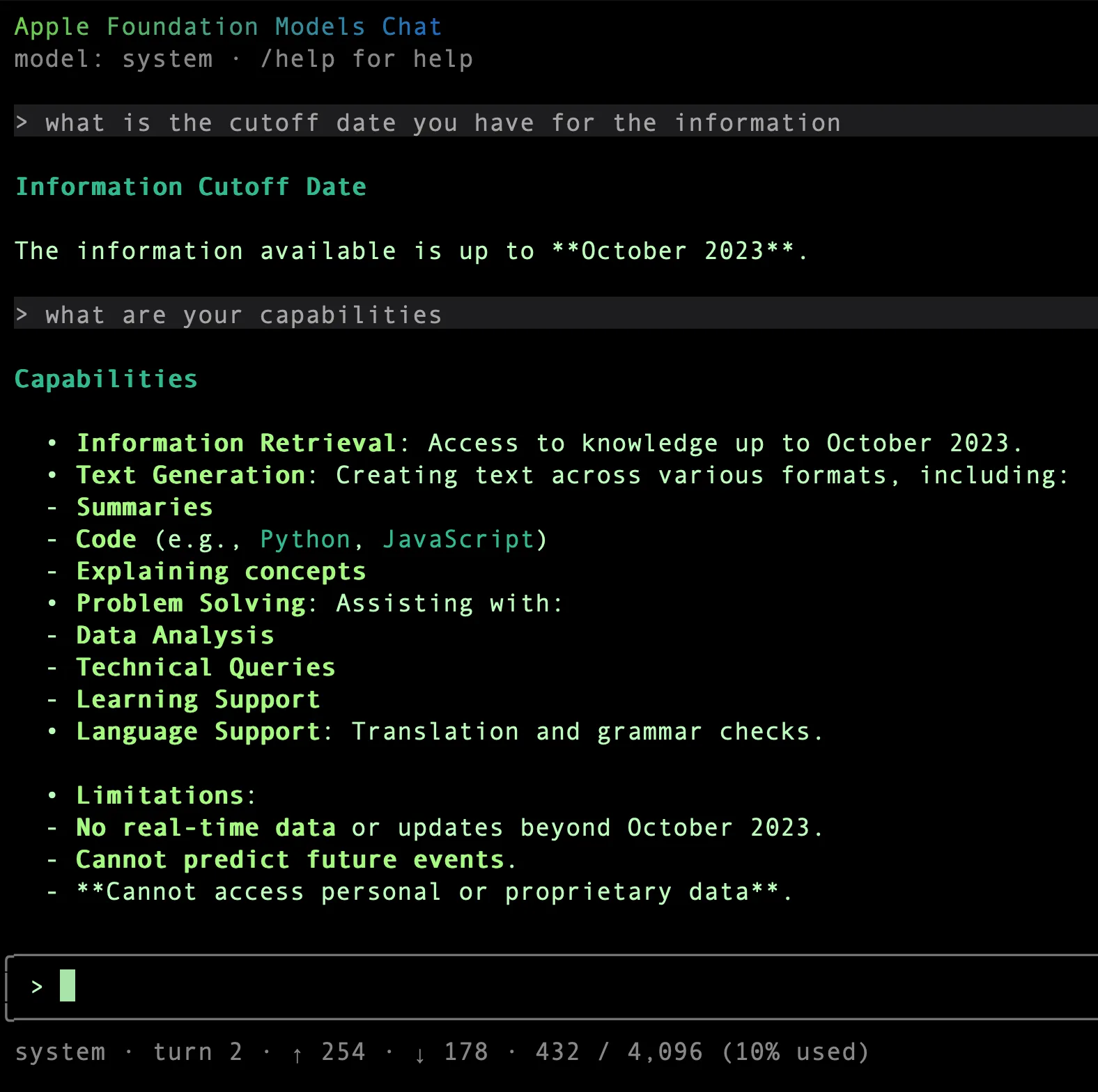
Here is what a short fm chat session looked like on my Mac — asking about the model's information cutoff and its capabilities:
7. Give the model instructions
You can also start the chat with instructions:
fm chat \
  --instructions 'You are a concise software architecture assistant.'
This is useful when testing the model for a particular type of local workflow rather than generic chat.
8. Count prompt tokens
To check the token count of some input:
fm count-tokens 'Hello world'
This is useful when experimenting with larger prompts before passing them to the model.
9. Run the model as a local service
The CLI also provides a server mode:
fm serve
or, with an explicit port:
fm serve --port 8080
This allows local applications and scripts to access the Foundation Model through a local endpoint rather than invoking the CLI manually.
Conceptually:
Python / Node.js / local application
              ↓
       local fm server
              ↓
   Apple Foundation Model
              ↓
         M2 Mac
This is the point where the model becomes useful as part of a local application architecture rather than only as a terminal experiment.
Quick command reference
# Check model availability
fm available

# Accept/check license
sudo fm license

# Show available commands
fm

# Run a prompt
fm respond 'Explain local AI in one sentence'

# Interactive chat
fm chat

# Chat with instructions
fm chat --instructions 'You are a concise software assistant.'

# Count tokens
fm count-tokens 'Hello world'

# Start local model server
fm serve --port 8080
A useful troubleshooting sequence
If the model does not start, this is the sequence I would follow:
fm available
      ↓
modelNotReady?
      ↓
sudo fm license
      ↓
check Apple Intelligence
      ↓
check Siri is enabled
      ↓
verify device language
      ↓
verify Siri language matches
      ↓
allow model resources to finish preparing
      ↓
fm available
The important lesson from my experiment was that the presence of the fm command does not guarantee that the on-device model is ready.
Start with:
fm available
and establish model availability before troubleshooting prompts or application code.
What comes next
This guide only covers getting Apple's native on-device Foundation Model running.
In a follow-up experiment, I plan to look at the other local-AI paths available on the same M2 Mac:
Apple Foundation Model → fm
Qwen / Gemma           → llama.cpp
Qwen / Gemma           → Ollama
Open models            → MLX
That comparison is more useful as a separate article where we can measure model capability, inference speed, memory usage, power consumption and suitability for coding workloads.
Key Takeaways
- The
fmCLI comes with macOS 27; there's no model download, GGUF file or third-party runtime to set up. - Check that the model is available before you debug prompts or app code.
modelNotReadyis often caused by configuration: the license, Apple Intelligence or Siri settings, or mismatched device and Siri languages.fm serveturns the on-device model into a local service your applications can call, keeping inference private on your Mac.
References
- Foundation Models framework — Apple Developer
- WWDC26: Build AI-powered scripts with the fm CLI and Python SDK
- Apple Intelligence system requirements — Apple Support
Related Reading
Ask AI About the Author
Open this query in ChatGPT, Claude, or Perplexity.
Comments
Comments are open to confirmed email subscribers. Use the email you subscribed with. To edit a comment, delete it and post a new one.
Subscribe to get the new blogs.
Field notes from someone who ships before they write about it. Sovereign AI, AI-SDLC, DevOps, and what 59 production deployments teach you. No spam. Unsubscribe anytime.